
Remote work and online bootcamps have made one thing worse: credential fraud. A meaningful share of job applicants submit doctored resumes or altered PDF certificates — and the old way of checking, calling a registrar or emailing a training academy, takes days you don't have during a hiring sprint.
ProofDeck cuts that down to five seconds, self-service, no phone calls.
Method 1: Scan the QR Code
Every ProofDeck certificate ships with a dynamic, tamper-proof QR code.
- Open your phone's camera — no app needed.
- Point it at the QR code, on-screen or printed.
- Tap the link that pops up — it goes straight to
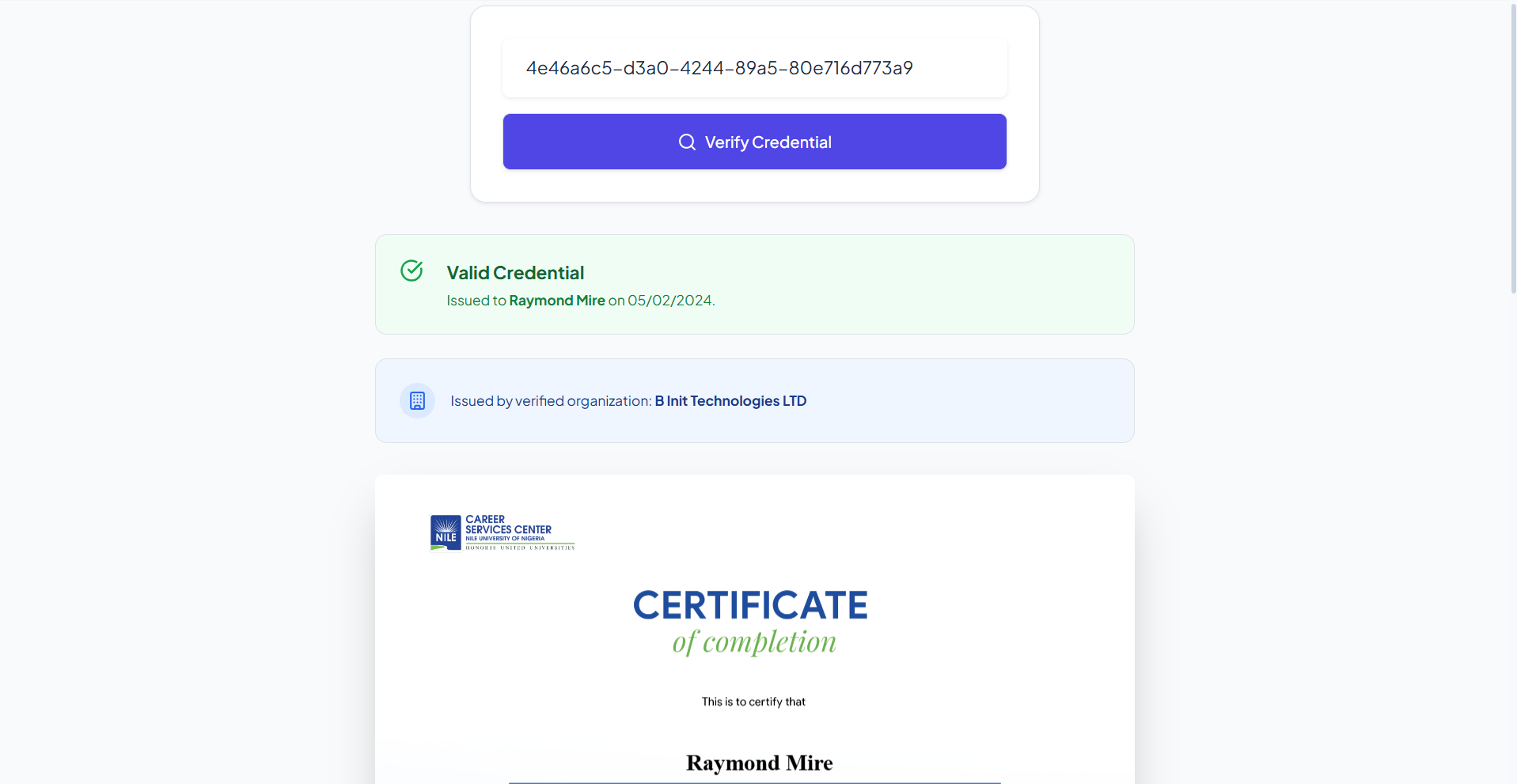
proofdeck.app/verify/.... - The live ledger shows you: - The authenticated recipient name - The issuing organization, with a verified badge - The exact course title and completion date - The unique certificate ID
If someone edited the name on the PDF, the live record still shows the original. Editing the file doesn't touch the ledger.
Method 2: Look Up a Certificate ID
Got a credential ID from a resume or email, no QR code in sight?
- Go to the ProofDeck Public Ledger.
- Enter the ID — something like
PD-8492-AX. - Click Verify Credential.
- You'll get an instant answer: exists, active, or revoked.
What to Actually Check
When you're verifying a candidate's certificate, look at:
- Verified Issuer Badge — confirms the issuing org is an authenticated ProofDeck customer, not just someone who signed up.
- Issue Timestamp — does the graduation date line up with the resume timeline?
- Revocation Status — catches expelled students or rescinded honors before they land on your team.
Protect your organization's credibility. Sign up on ProofDeck and start issuing certificates employers can actually trust.